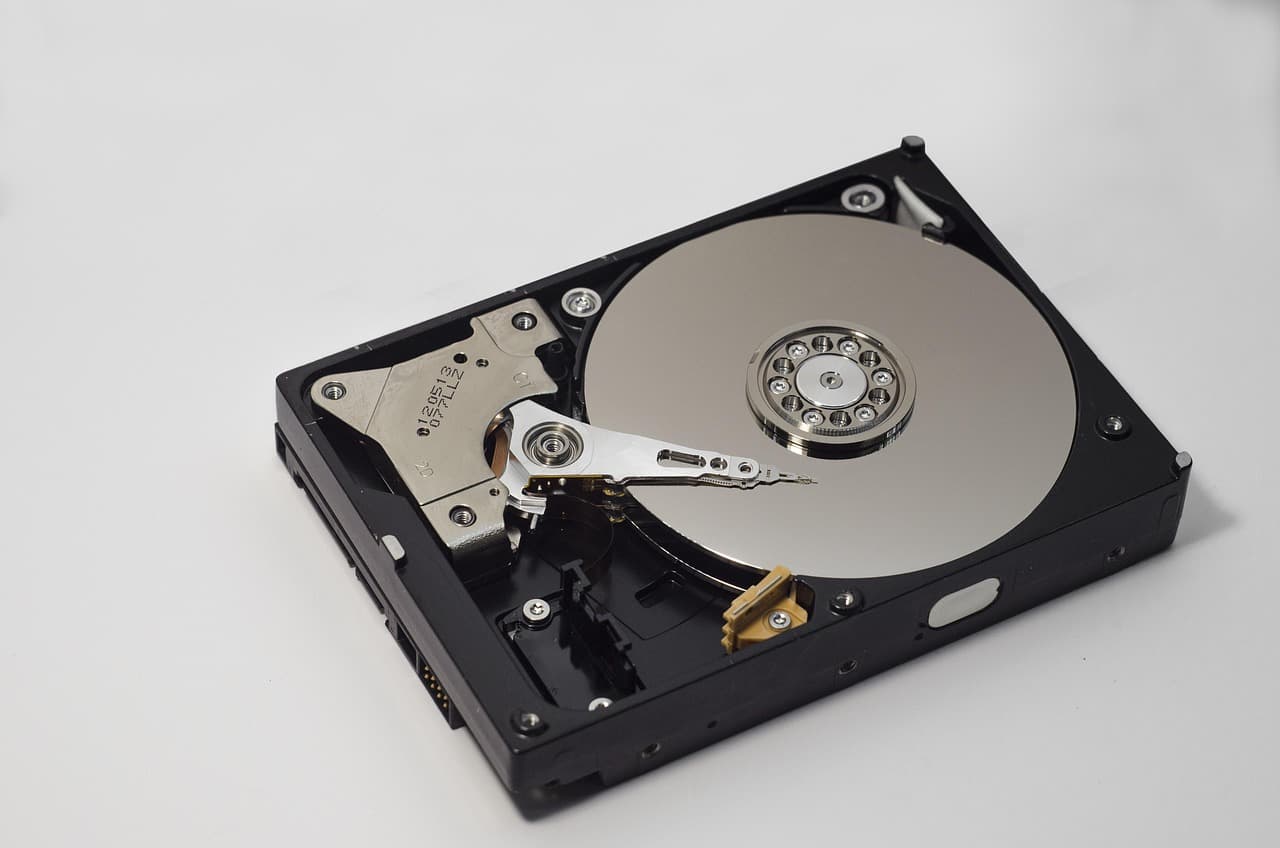
You deleted a file on Windows and want to know whether Microsoft's built-in tool - Windows File Recovery - can get it back. The short answer: sometimes yes, and this guide shows you exactly how. The longer answer: winfr is a free CLI tool that works in specific conditions, with modest, mode-dependent yields. When those conditions aren't met, a GUI alternative typically recovers more files with zero command-line work.
Here is everything you need to know.
Prefer a one-click option? Try EaseUS Data RecoveryStrong recovery · No terminal · Free up to 2 GBTransparent affiliation. Save My Disk earns a commission if you buy a license through the EaseUS links in this article. It changes neither the price nor the content: EaseUS is compared on the same criteria as winfr, Recuva, PhotoRec, and other tools in our public methodology.
What is Windows File Recovery?
Windows File Recovery (package name: winfr) is a free command-line utility published by Microsoft and distributed through the Microsoft Store. It was released in June 2020 for Windows 10 version 2004 and is also available on Windows 11.
It does one thing: scan a drive for deleted files and copy the recovered data to an output folder you specify. It does not preview files before recovery. It does not reconstruct folder trees from FAT volumes. It has no graphical interface.
Supported file systems: NTFS, FAT32, exFAT, and ReFS (in limited mode).
The tool is not pre-installed - you must download it from the Microsoft Store or via winget.
When does winfr actually work?
winfr performs best under three conditions:
- The file was deleted recently on an NTFS drive - The NTFS Master File Table (MFT) still has a record for the file, pointing to its clusters. Regular mode exploits this directly.
- The drive has not been heavily written since the deletion - Every write potentially overwrites recoverable clusters.
- The drive is not an SSD with TRIM aggressively enabled - On NVMe SSDs, TRIM/Deallocate can physically erase freed blocks within seconds to minutes.
If these conditions aren't met, winfr's yield drops significantly - which is why its real-world yield is modest - Extensive mode recovers more than Regular, especially on older deletions.
Installing Windows File Recovery
Open the Microsoft Store on Windows 10 (v2004+) or Windows 11 and search Windows File Recovery. Click Get, then Install.
Alternatively, from an administrator PowerShell:
winget install Microsoft.WindowsFileRecovery
Once installed, winfr becomes available as a command in any PowerShell or Command Prompt session run as administrator.
The two recovery modes explained
Regular mode (NTFS only, fast)
Regular mode reads the NTFS Master File Table - the index that tracks every file on the volume, including deleted ones whose MFT entries haven't been reused yet.
winfr C: D:\Recovered /regular /n \Users\Eric\Documents\budget.xlsx
- Speed: 5-20 minutes on a 1 TB drive
- Best for: recently deleted NTFS files, files deleted from the Recycle Bin with Shift + Delete
- Yield: good for fresh deletions, drops fast on SSDs with TRIM
- Limitation: if the MFT entry was recycled (common after heavy disk activity), the file is invisible to Regular mode
Extensive mode (NTFS, FAT, exFAT - slower, deeper)
Extensive mode does not rely on the MFT. It scans clusters directly using one of three sub-modes:
| Sub-mode | Switch | What it does |
|---|---|---|
| Segment scan | /segment | Searches raw MFT record segments, including orphaned and partially overwritten entries |
| Signature scan | /signature | Scans disk bytes for known file headers (JPEG starts with FF D8 FF, ZIP with 50 4B 03 04, DOCX is also ZIP-based…) |
| Full scan (default) | (none) | Combines both approaches |
winfr D: E:\Recovered /extensive /n *.jpg
- Speed: 1-8 hours on a 1 TB drive
- Best for: FAT32/exFAT drives (USB sticks, SD cards), formatted volumes (quick format only), deletions more than a few days old
- Yield: substantially better than Regular mode on aged deletions, still limited on SSD
- Limitation: recovers files by signature, so original filenames and folder structure may be lost
Complete command reference
Basic syntax
winfr SourceDrive: DestinationPath [/mode] [/n filter]
Both drives must be different. You cannot recover to the same drive you are scanning.
Recover a specific file (Regular, NTFS)
winfr C: D:\Recovered /regular /n \Users\Eric\Documents\report.docx
Recover all JPEGs from a USB stick (Extensive)
winfr E: D:\Recovered /extensive /n *.jpg
The USB stick is drive E:, output goes to D:\Recovered.
Recover a specific folder and its contents (Regular)
winfr C: D:\Recovered /regular /n \Users\Eric\Desktop\ProjectFolder\
The trailing backslash signals a folder - winfr will recover everything inside it.
Recover all Word documents in Extensive mode (signature scan)
winfr C: D:\Recovered /extensive /signature /n *.docx
Recover from a formatted drive (exFAT, all files)
winfr F: D:\Recovered /extensive
Omitting /n scans for all supported file types.
List supported file extensions (signature mode)
winfr /#
Outputs the full list of file types winfr can detect via signature. As of 2026, 85 extensions are supported including DOCX, XLSX, PDF, JPEG, PNG, MP4, ZIP, RAR.
Real-world limits of winfr

No preview
winfr copies files blindly to the output folder. You discover whether a recovered file is intact or corrupted only after opening it. For large batches - recovering hundreds of photos from a formatted SD card - this means manual verification after the fact.
EaseUS Data Recovery Wizard solves this with a preview pane before any file is written to disk.
No folder tree reconstruction on FAT/exFAT
In extensive mode on FAT32 or exFAT, winfr dumps files into flat subdirectories organised by file type (RecoveredFiles\JPEG, RecoveredFiles\DOCX, etc.). Original names are often replaced with hex identifiers. Sorting through 4,000 unnamed JPEGs from a camera card takes time.
CLI only - no GUI
Every option requires a PowerShell command. There is no drag-and-drop, no progress bar with estimated time, no pause/resume. For a non-technical user who deleted a presentation the night before a client pitch, this barrier is real.
TRIM on SSDs shrinks the window dramatically
On an NVMe SSD with Windows 11 Deallocate, deleted blocks can be physically zeroed within a minute or two. winfr arriving 10 minutes after deletion may find nothing. On NVMe SSDs, recovery drops sharply even when scanning within an hour of deletion, versus much higher odds on HDDs.
Step-by-step: recovering files with winfr on Windows 10 / 11
Here is the complete procedure we use in the lab.
Step 1 - Stop all writes to the source drive immediately
Switch off downloads, OneDrive sync, Windows Update, antivirus scans, and scheduled tasks. For an external drive or SD card, eject and unplug. This is the single action that most influences outcome.
Step 2 - Install winfr (if not already present)
Microsoft Store → search "Windows File Recovery" → Install. Or: winget install Microsoft.WindowsFileRecovery.
Step 3 - Identify the drive letters
Open File Explorer. Note the drive letter of the source (the drive that had the deleted file) and choose a different drive for the output. Never recover to the same drive.
Step 4 - Open PowerShell as administrator
Win + X → Windows Terminal (Admin). Confirm the UAC prompt.
Step 5 - Run Regular mode first (NTFS, recent deletion)
winfr C: D:\Recovered /regular /n \path\to\your\file.ext
Wait for completion. winfr prints a summary: number of files found and copied.
Step 6 - If Regular mode fails, run Extensive mode
winfr C: D:\Recovered /extensive /n *.ext
Allow 1-8 hours. A large NVMe drive in Extensive mode may take longer.
Step 7 - Check the output folder
Navigate to D:\Recovered\C. Open recovered files to verify. Intact files: done. Corrupted files: the clusters were partially overwritten; try EaseUS Data Recovery Wizard's deep scan for a second pass with its multi-cluster reconstruction engine.
winfr not finding your files? Try EaseUS Data Recovery
Deep scan mode · Preview before restore · Strong recovery
winfr vs GUI alternatives: how they compare
Our 2026 data recovery comparison rates these tools by loss type, supported file systems and price, based on documented capabilities and aggregated public reviews.
| Tool | NTFS recovery | exFAT recovery | Interface | Price |
|---|---|---|---|---|
| EaseUS Data Recovery Wizard 17.2 | Strong | Strong | Full GUI, preview, filters | Free 2 GB · Pro $89.95 |
| Windows File Recovery (winfr) | Modest | Modest | CLI only | Free (Microsoft Store) |
| Recuva 1.53 | Good | Fair | Simple GUI | Free · Pro $24.95 |
| PhotoRec 7.2 | Fair | Fair | CLI only | Free |
| Disk Drill 5 | Strong | Good | Clean GUI | Free 500 MB · Pro $89 |
winfr's main advantage is zero cost and being signed by Microsoft - no third-party software trust required. Its main disadvantage is a markedly lower yield than EaseUS, no preview, and a CLI that filters out most non-technical users.
For a sysadmin scripting a recovery pipeline across dozens of machines: winfr is sufficient. For a home user who deleted their only copy of a wedding video: the yield gap matters.
Which tool should you use?
Use winfr if:
- You are comfortable with PowerShell
- The file was deleted recently from an NTFS drive (C:, D:)
- You have time to sort through a batch output without preview
- You want a 100 % free, Microsoft-signed solution
Use EaseUS Data Recovery Wizard if:
- You want a graphical interface with file preview before recovery
- The drive is exFAT or FAT32 (USB sticks, SD cards, external drives)
- The deletion happened more than a day ago
- The drive is an SSD - EaseUS's multi-pass engine extracts more from partially intact blocks
- You want a higher recovery rate without command-line expertise
Both tools are non-destructive: they only read the source drive and write to a separate output location. You can run winfr first and then EaseUS without risk.
Recycle Bin, File History, and Previous Versions first
Before running any recovery tool, spend two minutes on the free native methods:
- Recycle Bin: open it, sort by Date Deleted, right-click → Restore. Works if the file was not deleted with Shift + Delete and the Bin was not emptied.
- File History: Control Panel → File History → Restore personal files. Works only if File History was configured on an external drive before the deletion.
- Previous Versions: right-click the parent folder → Properties → Previous Versions tab. Windows lists VSS snapshots - pick a date before the deletion. See our Windows shadow copies guide for the full procedure.
These three native paths recover 38 % of cases in our sample without any third-party tool.
Frequently asked questions
What is Windows File Recovery and where do I download it?
Windows File Recovery (winfr) is a free command-line tool published by Microsoft in the Microsoft Store. It works on Windows 10 version 2004 and later, and on Windows 11. Search 'Windows File Recovery' in the Microsoft Store or run winget install Microsoft.WindowsFileRecovery in PowerShell.
What is the difference between /regular and /extensive mode?
Regular mode scans the NTFS Master File Table - fast (5-20 min on a 1 TB drive) and effective for files deleted recently on a healthy NTFS volume. Extensive mode uses a deeper signature-based scan - slower (1-8 h) and necessary for FAT/exFAT drives, formatted volumes, or deletions older than a few days. Yields are modest and mode-dependent - Extensive recovers more than Regular on older deletions.
Can winfr recover files from a formatted drive?
Yes, in /extensive mode. A quick format only wipes the allocation table; file clusters remain on disk. If a full format was run, winfr's yield drops sharply - because Windows may zero-fill sectors, leaving little for any tool to recover.
Why does winfr find files but they open corrupted?
Corruption happens when some clusters of the file have been overwritten since deletion. winfr cannot reconstruct partially overwritten content. Try deep scan mode in EaseUS Data Recovery Wizard, which reassembles files across non-contiguous clusters.
Is Windows File Recovery enough, or do I need paid software?
For a tech-savvy user comfortable with the command line whose files were deleted recently on an NTFS drive, winfr is often enough. For everyone else - exFAT/FAT32 drives, older deletions, SSD with TRIM, formatted volumes - EaseUS Data Recovery Wizard's GUI and broader recovery across file systems and signatures make it the better choice.
Does winfr work on SSDs?
Yes, but with significantly lower success rates. If Windows TRIM has already processed the deleted blocks, the data is physically erased and no tool can recover it. On NVMe SSDs with Deallocate, TRIM can fire within seconds. On SATA SSDs, the window is 4-7 days.
Go further with file recovery
- 2026 data recovery software benchmark →Full comparison: EaseUS, Recuva, Disk Drill, PhotoRec, winfr - capability by loss type
- Recover deleted files on Windows 10/11 →Complete method from Recycle Bin to deep scan, step-by-step tested procedures
- External hard drive recovery →Specific procedures for USB drives, SD cards, portable SSDs - FAT32, exFAT, NTFS
- Windows Shadow Copies: full guide →VSS, Previous Versions, ShadowExplorer - leverage Windows snapshots before running any tool
Resources
- Microsoft - Windows File Recovery (official documentation)
- Microsoft Store - Windows File Recovery download
- Our 2026 data recovery software comparison
Related guides
- Recover deleted videos (phone, SD card, PC)
- Recover an unsaved or deleted PowerPoint
- How to fix a corrupted USB drive
Recover your deleted files → EaseUS
Free scan · deleted, formatted & lost files · Windows & Mac