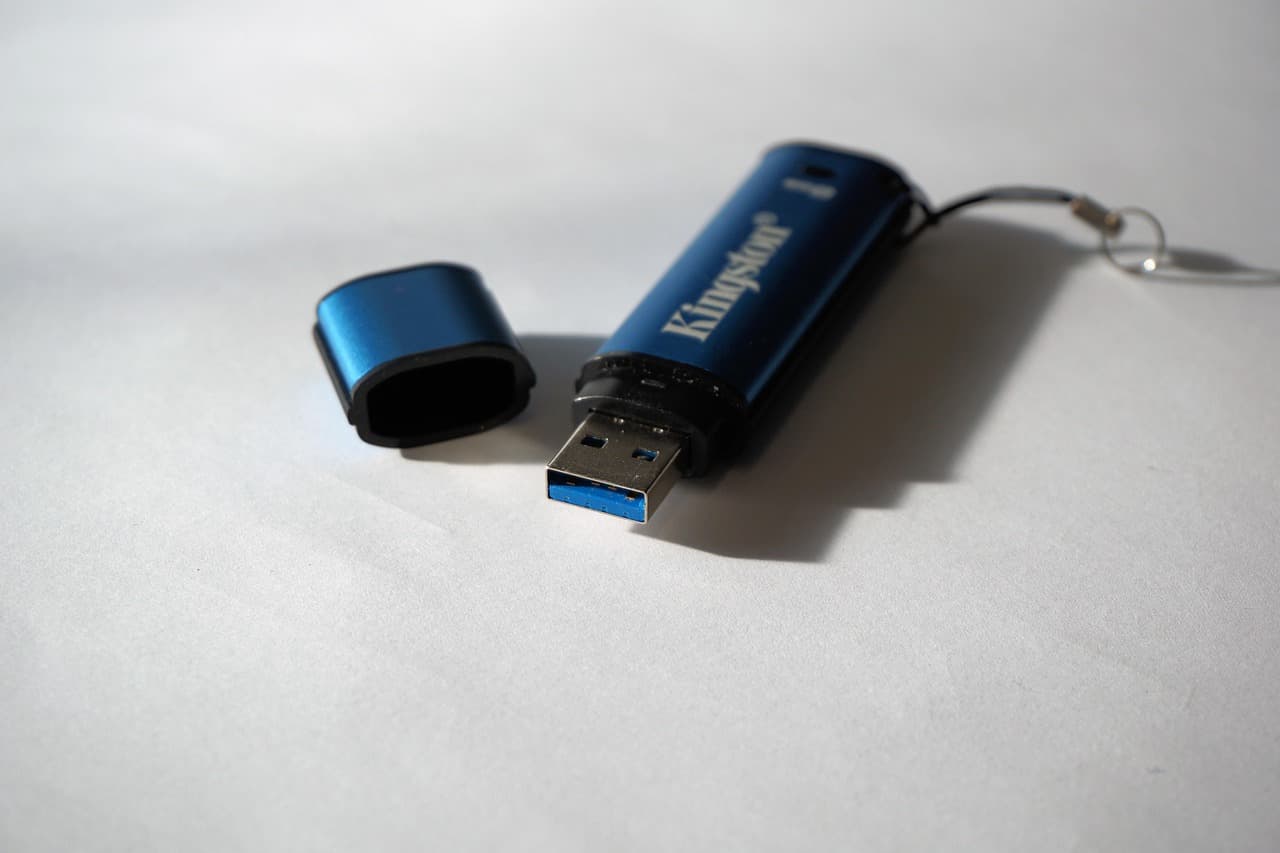
A USB drive that suddenly won't open, shows as RAW, or asks to be formatted feels like instant data loss. In most cases it is not. The files are usually still there, and the drive is often repairable. The trick is to work in the right order - and never reformat before you have recovered. Here is the safe, step-by-step way to do it.
First rule: do not format yet
When Windows pops up "You need to format the disk before you can use it," the instinct is to click yes. Don't. That message almost always means the filesystem is corrupted, not that the files are gone. Formatting makes recovery much harder. Set the drive aside mentally as "recover first, repair second" and work through the steps below.
Step 1 - Safe checks before anything else
Start with the simplest causes. Try a different USB port, then a different computer. Plug the drive in directly, not through a hub. A loose port or a flaky cable mimics corruption. If the drive works elsewhere, the problem was the port, not the drive.
Step 2 - Check Disk Management and the drive letter
Open Disk Management (right-click Start, then "Disk Management"). If the drive appears but has no letter, right-click it and assign one - that alone can bring it back. If it shows as RAW or unallocated, the filesystem is corrupted: do not format, move to recovery in Step 4. If it does not appear at all on any computer, the hardware may have failed.
Step 3 - Repair the filesystem with chkdsk
If the drive has a letter but won't open, chkdsk often fixes it. Open Command Prompt and run chkdsk X: /f (replace X with your drive's letter). It repairs the filesystem in place and frequently restores access with files intact. If chkdsk reports the drive is RAW, skip it - chkdsk cannot work on RAW, so go straight to recovery software.
Step 4 - Recover the files with software
If chkdsk fails or the drive is RAW, recover the files before you reformat. Recovery software scans the drive at the sector level in read-only mode and rebuilds what it finds. Always recover to a different drive, never back onto the corrupted USB. This is the step that gets your data back when the structure is too damaged to repair directly. For a closely related case, our guide to a corrupted external hard drive covers the same approach on larger drives.
Run an EaseUS Data Recovery Wizard scan
Step 5 - Reformat to make the drive usable again
Once your files are safely copied elsewhere, reformat the USB to repair it for reuse. In File Explorer, right-click the drive, choose Format, pick exFAT or NTFS, and run a full (not quick) format to clear bad structure. Then test it with some throwaway files. If it corrupts again soon after, the drive is failing - replace it.
Pick exFAT rather than FAT32 unless something specifically requires the older format. FAT32 stores file sizes in a 32-bit field, so it cannot hold a single file of 4 GiB or more (2^32 bytes, one byte past the limit), which is the usual reason a large video refuses to copy onto a stick that has plenty of free space. Note too that the two formats differ in how much they cost you: a quick format rewrites only the file table, while the full format above walks every sector of the drive.
The honest bottom line
A corrupted USB drive is usually a filesystem problem, not a death sentence for your files. Work in order: simple checks, drive letter, chkdsk, then recovery software - and only format once your data is safe elsewhere. The one habit that turns a USB failure from a disaster into a shrug is keeping a backup, because flash drives do eventually fail.
Related guides
Recover the data from your hard drive → EaseUS
Free scan · deleted, formatted & lost files · Windows & Mac


