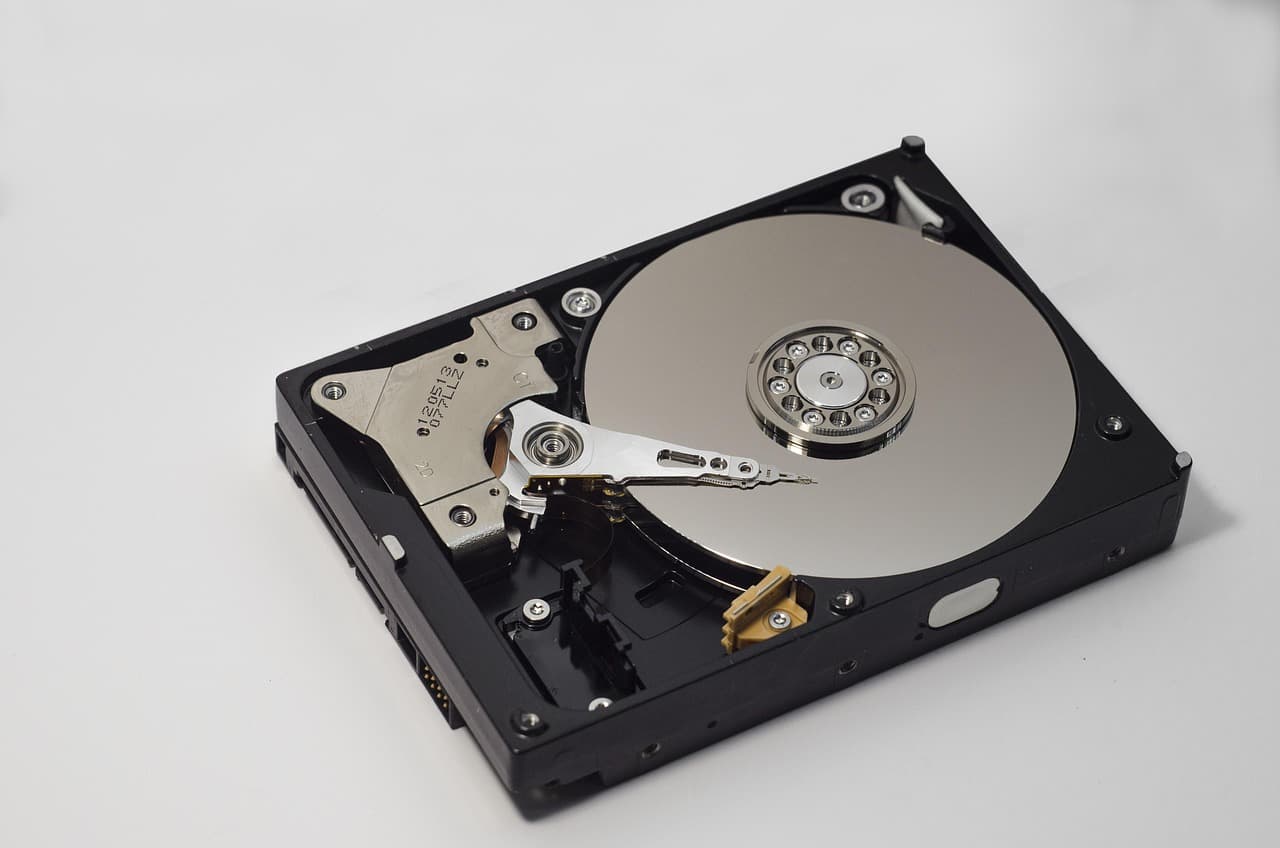
You accidentally deleted a folder. Your external drive is showing as RAW. You formatted the wrong partition. Data recovery software is the category of tools designed to retrieve files in precisely these situations - and understanding how they work, and when they don't, is the difference between recovering everything and making things permanently worse.
This guide covers the mechanics, the limits, the selection criteria, and a comparison of the six most-used tools, based on their documented capabilities and public reputation - not vendor marketing.
How to read the comparison in this guide
There is no single, universal "recovery rate" for a recovery tool: results depend heavily on the media type (HDD vs SSD vs SD card), the failure scenario (simple delete vs RAW partition vs full format), how much time passed since the incident, and how much the drive was used afterward. Two people running the same tool on different drives can see wildly different outcomes.
So instead of inventing a single headline number, this guide ranks the tools qualitatively - by the failure scenarios each one handles best, the filesystems and media it supports, its preview and imaging features, and its price. Where you see relative wording like "strongest on RAW partitions" or "best for Mac users," it reflects each tool's documented feature set and how it is generally regarded, not a controlled benchmark we ran ourselves. Always run a free scan on your own drive before paying - that is the only number that matters for your case.
How data recovery software actually works
Every file stored on a drive has two parts: the directory entry (the file's name, location, and size recorded in the filesystem index) and the data sectors (the actual bytes, scattered across the disk). When you delete a file or format a drive, the OS updates the directory index to mark those sectors as "free to overwrite" - but in most cases, the bytes in the actual sectors are not touched. They remain physically intact until the OS writes something else on top of them.
Data recovery software exploits this gap. Instead of asking the filesystem "what's here?", it communicates directly with the drive at the sector level - reading raw blocks in sequence - and applies two complementary strategies:
Strategy 1 - Metadata reconstruction. The software reads the allocation table (MFT for NTFS, FAT for exFAT/FAT32, B-tree for APFS) and looks for directory entries that were marked deleted but not yet overwritten. When it finds one, it can reconstruct the file with its original name, path, and timestamps. This is what a "quick scan" does. It is fast (15-45 minutes on a 1 TB drive) and recovers files with full metadata. It works reliably for recently deleted files on drives with no additional writes after the deletion.
Strategy 2 - File signature scanning (deep scan / carving). Every file format starts with specific bytes called magic bytes. A JPEG always starts with FF D8 FF. A ZIP with 50 4B 03 04. A PDF with 25 50 44 46. During a deep scan, the software reads every single sector of the drive and checks each one against a database of thousands of file signatures. When it matches a signature, it reads forward until it finds the corresponding end-of-file marker. This method recovers files even when the filesystem is entirely gone - after a full format, on a RAW drive, or when the partition table is destroyed. The cost: it is slow (2-8 hours), and recovered files lose their original names (you get FILE0001.jpg instead of vacation_2024.jpg).
Good data recovery tools layer both strategies: quick scan first for recent deletions, deep scan for everything else.
Logical failure vs. physical failure - the line that changes everything
The single most important concept in data recovery is the distinction between logical failure and physical failure. It determines whether software will help at all.
Logical failure - software can help
A logical failure means the drive hardware is intact; the problem is in the data structures on top of it. Your files still exist physically; the map that points to them is corrupted or deleted.
Common logical failure scenarios:
- File deleted (Recycle Bin emptied, or Shift+Delete)
- Drive showing as RAW (filesystem corrupted by abrupt disconnection, power cut, or bad sectors in the filesystem area)
- Partition table lost or overwritten
- Accidental format (quick format or full format)
- SD card formatted in camera or computer
- Drive letter missing after partition resize gone wrong
In all these cases, data recovery software works on a healthy drive and recovers files in the large majority of cases in good conditions (no overwriting since the incident).
Physical failure - software cannot help
A physical failure means the hardware itself has failed. The OS may not detect the drive at all, or may detect it but be unable to read sectors.
Physical failure symptoms:
- Repetitive clicking sound every 2-5 seconds ("click of death" - read head arm hitting the actuator stop)
- High-pitched grinding sound (head crash - heads contacting platters)
- Drive spins up and immediately spins down repeatedly (motor failure or power delivery issue)
- Drive not detected at all, and connection tests rule out cable/enclosure problems
- Drive detected but reading speed drops to near zero and the tool reports 100% bad sectors
In physical failure cases, no software can help because it cannot read the sectors. Only a certified ISO Class 5 cleanroom laboratory can open the drive, replace failing components with donor parts from an identical drive model, and clone the platters to a healthy drive before attempting extraction. Reputable labs: Ontrack, DriveSavers, Secure Data Recovery, Gillware. Budget €300-€2,500 depending on severity. See our hard drive clicking failure guide for a full breakdown.
The cases where software fails (even on a healthy drive)

Understanding when software gives up is as important as knowing when it works.
SSD with TRIM after hours. Modern SSDs run garbage collection automatically. Once TRIM has wiped the freed NAND blocks, the sectors read as all-zeros. Software scanning those blocks finds nothing. On a TRIM-active SSD, the practical window for recovery is minutes, not days.
Full format followed by heavy use. A quick format (the Windows default) only resets the allocation table - sectors are untouched, software can recover. A full format writes zeros over every sector. After a full format on an HDD with no subsequent use, a deep scan may still recover some files from remnants, but results are partial at best. After heavy use post-format, success rates approach zero.
Ransomware encryption. If ransomware encrypted your files individually, the files are still present on the disk - they're just unreadable. Recovery software finds and restores the encrypted versions, not the originals. The solution path goes through Windows Volume Shadow Copies (if the ransomware didn't wipe them), a prior backup, or a public decryptor at No More Ransom.
Encryption without the key. BitLocker or FileVault encrypted drives are recoverable by software only if you have the key or password. Without the key, the sectors are encrypted ciphertext. No recovery tool can undo AES-256 encryption.
Overwriting after the incident. Continuing to use the drive after noticing data loss is the most common mistake. Every system write (Windows Update background download, swap file growth, browser cache, thumbnail generation) may land on the sectors your deleted files occupied. Stop using the drive immediately, and recover from another machine with the problem drive treated as read-only.
How to choose data recovery software - 7 criteria
Not all tools are built the same. These are the criteria that actually matter.
1. Operating system and filesystem compatibility
Windows tools (NTFS, FAT32, exFAT) are nearly universal. macOS tools (APFS, HFS+) are far less common - only a handful of products support APFS natively with full metadata. Linux filesystems (ext4, Btrfs, XFS) are supported by very few consumer tools; the open-source tools (TestDisk, PhotoRec) are often the only options. Verify filesystem support before buying, especially if you're on a Mac or recovering from a Linux NAS.
2. Preview before purchase
The ability to open and verify recovered files before paying is essential. A file appearing in the scan list is not a guarantee it's intact and readable. Tools that require payment before previewing are a red flag - some of them list files from the filesystem cache that are not actually recoverable.
3. Deep scan quality (file carving)
Quick scan performance is comparable across most tools. The differentiator is the deep scan: how many file signatures the tool knows (good tools have 1,000+), how accurately it reads multi-sector files with gaps, and how well it handles fragmented files on HDDs. Ask or check reviews specifically for deep scan performance on RAW and post-format scenarios.
4. SSD and NVMe support
On SSDs, especially NVMe drives, recovery is harder. Check that the tool supports your SSD's interface (SATA, NVMe, M.2) and that it can attempt recovery on TRIM-active drives. Some tools create a sector-by-sector image of the SSD before scanning (the correct approach), others scan the live drive directly (risky and slower).
5. RAID and external storage support
Most consumer tools handle standalone drives and standard partitions. RAID recovery (rebuilding degraded RAID 0/1/5/6 sets) is a specialized capability only a few tools support - primarily R-Studio and GetDataBack. If you're recovering from a NAS or server, verify RAID support explicitly.
6. Free scan / trial before committing
Every reputable data recovery tool should let you scan for free and verify files exist before you pay. If a tool charges upfront without a scan, don't buy it.
7. Disk imaging capability
Before scanning a failing drive, the correct procedure is to create a sector-by-sector image of the drive (with ddrescue or the software's built-in imager) and work from the image, not the live drive. This prevents further reads on a fragile drive. Check if your chosen tool supports imaging, or whether you need a separate step.
The 6 best data recovery software tools compared (2026)
| Software | Best for | OS | SSD | RAW | RAID | Free tier | Price |
|---|---|---|---|---|---|---|---|
| EaseUS Data Recovery Wizard | Most home users, guided recovery | Win / Mac | Yes | Excellent | No | 2 GB | $69.95/yr or $149.95 lifetime |
| R-Studio | Technicians, RAID, rare filesystems | Win / Mac / Linux | Yes | Excellent | Yes (0/1/5/6) | No | $79.99 lifetime |
| Disk Drill | Mac users, polished UI | Win / Mac | Yes | Good | No | 500 MB (Mac) / preview only (Win) | $89 lifetime |
| Recuva | Simple recent deletions on Windows | Windows only | Limited | Poor | No | Unlimited | Free / ~$25 Pro |
| Stellar Data Recovery | Photo/video pros, RAW camera files | Win / Mac | Yes | Good | No (unless Pro) | No | $59.99/yr |
| TestDisk + PhotoRec | Free, open-source, terminal users | Win / Mac / Linux | Partial | Excellent | No | Free | Free |
"Best for" and the SSD/RAW/RAID columns reflect each tool's documented capabilities and how it is generally regarded, not a controlled benchmark run for this article. Your own results will vary by media type, time since the incident, and post-incident disk usage - always run the free scan first.
EaseUS Data Recovery Wizard - best for most users
EaseUS is the strongest all-round option for consumers in 2026. It combines a capable quick scan (metadata reconstruction) and deep scan (file carving), and is well regarded for handling common logical failures such as RAW partitions after power loss and external drives after an accidental format. The interface is available in English, French, and Spanish and guides you through the scan in three clicks. Full file preview before purchase is reliable - images, documents and videos open correctly within the preview panel. The free tier lets you scan and preview before deciding to pay.
The main limitations: the free tier caps at 2 GB, RAID 5/6 rebuild is not supported, and the software is published by a Chinese company (CHENGDU Yiwo Tech). The latter is documented: the analysis is entirely local, no files are uploaded to any server, and the privacy policy is GDPR-compliant. For most home users, it's not a meaningful concern.
Try EaseUS Data Recovery Wizard free
R-Studio - the technician's reference
R-Studio is the most capable tool here for lost partitions, RAID reconstruction, and rare filesystem formats. Its built-in disk imager (before scanning), hex editor, and network-accessible recovery make it a standard in professional IT shops. The price of $79.99 lifetime is lower than EaseUS lifetime for a more technically powerful tool.
The catch is the interface: it assumes technical knowledge. There is no guided workflow. Terms like "raw file recovery by signature," "virtual RAID reconstruction," and "file system parsing algorithms" appear prominently in the interface. For a panicked home user who just lost vacation photos, this is the wrong pick. For an IT administrator dealing with a failed NAS, it's the right one.
Disk Drill - best for Mac users
Disk Drill's Mac-native heritage shows in its handling of APFS (the default Mac filesystem since High Sierra), and it is generally considered one of the better choices for Mac recovery. The interface is among the most polished in the category. The built-in Recovery Vault feature can protect specific folders from accidental deletion proactively.
On Windows, the free tier only provides file preview (no recovery), which makes evaluation harder. The $89 lifetime license is competitive.
Recuva - the honest free option
Recuva (by Piriform, makers of CCleaner) is the best free data recovery tool for simple Windows cases - a recently emptied Recycle Bin, a file deleted yesterday from a functioning HDD. It's fast, requires zero technical knowledge, and has no recovery cap on the free version.
Its limits are real: it is built for straightforward, recent deletions and struggles when the incident is older or the drive has RAW/lost-partition issues, where a deep-scan tool does noticeably better. Recuva has also not seen a major algorithm update in a long time. For simple, recent deletions on HDD, it remains a solid recommendation at $0.
Stellar Data Recovery - best for photo and video professionals
Stellar's dedicated Photo Recovery edition supports over 200 RAW camera formats (Sony ARW, Canon CR3/CR2, Nikon NEF, DNG) and includes a video repair module for corrupted .mov and .mp4 files on the Premium tier. If your profession is photography or video production and a camera SD card just failed, Stellar's format depth is unmatched.
For non-media use cases, EaseUS and R-Studio are equally effective and more economical long-term (Stellar requires an annual subscription). See our EaseUS vs Disk Drill vs Recuva comparison for a more granular side-by-side.
TestDisk + PhotoRec - the free open-source option
TestDisk and PhotoRec are command-line open-source tools maintained by Christophe Grenier. TestDisk reconstructs lost partition tables and boot records. PhotoRec (despite the name) recovers 480+ file types from any media using file carving, and its carving engine is well regarded - on pure signature recovery it can rival or beat paid tools. The trade-off is usability: the interface is a terminal menu with no previews, no file naming (output files get sequential names), and a steep learning curve. How that actually works, and when it is the wrong tool, is covered in file carving.
For a user who is comfortable in a terminal and doesn't want to pay, TestDisk + PhotoRec is excellent. For anyone who needs a working UI, it is a last resort. Our TestDisk vs PhotoRec guide walks through both tools with full step-by-step examples.
Step-by-step: how to run a data recovery (EaseUS example)
The following procedure applies to any logical failure scenario - deleted files, RAW drive, accidental format. Adjust the scan depth based on your situation.
Before you start
- Confirm the drive is detected in Disk Management (Win+X → Disk Management). If it appears as RAW or Unallocated, do not format it.
- Do not install recovery software on the drive you are recovering from.
- Have a second drive ready to receive recovered files (capacity at least equal to the target drive).
The scan
- Download EaseUS Data Recovery Wizard from the official site and install it on your system drive (C:) or a USB stick.
- Launch the software. The affected drive appears in the list, even if Windows shows it as RAW.
- Select the drive and click Scan. The quick scan completes in 15-45 minutes.
- Browse the results tree. Filter by file type or date if the list is large. Open images and documents in the preview pane.
- If your files are not found after the quick scan, click Deep Scan. Plan for 2-8 hours. The deep scan reads every sector and reconstructs files from raw signatures.
- Once the deep scan completes, re-browse and preview. At this point, purchase a license if required.
- Select the files to restore, choose the destination drive, and click Recover. Never restore to the source drive.
Post-recovery
- Verify each recovered file opens correctly before considering the recovery complete.
- Run a SMART check on the recovered drive (CrystalDiskInfo on Windows is free) to detect early signs of hardware degradation.
- Set up a backup immediately so this situation does not repeat. Our 3-2-1 backup strategy guide walks through the process.
Common mistakes that permanently destroy data
Accepting the Windows format prompt. When Windows shows "You need to format the disk before you can use it," the data is usually still there - the filesystem is broken, not the data. Accepting the format wipes the partition table. Recovery is harder afterward, and on SSDs, TRIM may make it impossible.
Running chkdsk /f before recovering files. chkdsk repairs filesystem errors by marking questionable directory entries as invalid and removing them. On a lightly corrupted drive, this is useful - after recovering your files to another location. Running it before recovery can delete files that software would have found. Always recover first, repair second.
Installing recovery software on the problem drive. Every byte written to the drive risks landing on a sector that holds a file you want back. This includes the recovery software installer itself. Always install on a different volume.
Waiting. The longer you wait, the more background system writes pile up on the freed sectors. On Windows, background processes (Windows Defender scan, indexing service, swap file growth) write to the disk constantly. Act the same day.
Using a "recovery" tool from an unverified source. There is an entire industry of fake recovery tools that show impressive scan results, then ask for payment without recovering anything. Stick to well-known names with verifiable track records: EaseUS, R-Studio, Recuva, Disk Drill, Stellar, Wondershare Recoverit, TestDisk.
Recommendation by profile
| Your situation | Best tool | Reason |
|---|---|---|
| Home user, accidental delete, Windows | EaseUS Data Recovery Wizard | Best UI + recovery rate combo, preview before paying |
| Home user, Mac | EaseUS or Disk Drill | Both support APFS well; Disk Drill slightly better on Mac-only scenarios |
| Budget is zero, simple HDD deletion | Recuva or PhotoRec | Free, sufficient for recent simple cases |
| IT technician, RAID, NAS server | R-Studio | RAID rebuild, technical depth, best raw rate |
| Photographer, SD card failure | Stellar Data Recovery Photo | Deepest RAW format library |
| Linux filesystem (ext4, Btrfs) | TestDisk + PhotoRec or R-Studio | Few consumer tools support Linux filesystems |
When to call a professional lab
If you answer yes to any of the following, stop all software attempts and contact a cleanroom lab:
- The drive makes a repetitive clicking or grinding sound.
- The drive is not detected by any computer, even after cable and enclosure swaps.
- Data recovery software runs but finds 0 files after a complete deep scan on a drive you know had data.
- You dropped the drive while it was spinning.
Every additional read attempt on a mechanically failing drive increases the risk of a head crash. The sooner a lab receives a failing drive, the higher the success probability. Our external hard drive recovery guide covers the lab path in detail.
Conclusion
Data recovery software works - reliably and without technical expertise - on logical failures: deleted files, RAW partitions, accidental formats, lost partition tables. The ceiling is the hardware: no software recovers from a physically broken drive, a TRIM-wiped SSD, or a drive that has been heavily written to after the incident.
For the majority of home users facing a standard data loss event, EaseUS Data Recovery Wizard is the right starting point: it scans for free, shows a full preview before you pay, supports 1,000+ file formats, and covers both Windows and Mac. Technicians dealing with RAID or rare formats will want R-Studio. Zero-budget users with simple HDD cases get solid results from Recuva or PhotoRec.
Whatever tool you use, the recovery rate is determined more by how quickly you act than by which specific software you pick.
Start a free EaseUS scan now
Related guides
-
OneDrive deleted my files: where they went and how to get them back
-
Recover deleted Google Drive files, including past the 30-day bin
-
Recovering files after a factory reset: what is still possible
-
Recover deleted files on Windows 10/11 - full procedure for the most common case
-
External hard drive recovery: step-by-step - connection failures, RAW drives, lab path
-
Best data recovery software 2026: in-depth comparison - COMP-intent deep dive with full scoring tables
-
Data recovery glossary: 25 terms explained - definitions for RAW, TRIM, MFT, file carving and more
-
SSD data recovery and TRIM: what's actually possible - NVMe, SATA SSD, garbage collection mechanics
-
TestDisk vs PhotoRec: complete guide 2026 - free open-source recovery tools, step by step
-
RAID 10 Data Recovery: The Linux Driver Is Not RAID 1+0, and the Layout Decides Everything
-
Can You Recover Deleted Discord Messages? The Honest Answer (2026)
-
Repair a corrupted Excel file: the four free steps before you buy anything
Recover your deleted files → EaseUS
Free scan · deleted, formatted & lost files · Windows & Mac