When your drive fails, forums and tutorials are full of technical terms - RAW, TRIM, MBR, bad sectors, ddrescue. Without knowing them, it's hard to correctly diagnose the situation and choose the right approach. This glossary covers the 25 essential data recovery terms, organized by category, with directly actionable definitions.
Data Recovery Fundamentals
Data Recovery
Data recovery refers to the process of retrieving lost files from a digital storage medium. When a file is deleted, its content remains physically present until new data overwrites the freed space. Recovery exploits this time window to find data before it gets overwritten. The earlier you act after data loss, the higher the recovery rate.
Logical Failure vs Physical Failure
A logical failure affects data structure (deletion, file system corruption, formatting) without hardware damage - software tools often work. A physical failure affects the hardware itself (read head, platter, circuit board) and requires a clean room intervention. The distinction is critical: no software can work on a physically dead drive, and repeated read attempts make damage worse. See data recovery on clicking hard drives for physical failure cases.
Disk Image
A disk image is a bit-for-bit copy of a storage medium into a single file. Working from a disk image (rather than the original) is a data recovery best practice: it preserves the state of the failing drive and allows repeated scans without further stressing the hardware. Tools like ddrescue, dd, and R-Studio can create disk images.
Overwrite
Overwrite occurs when new data is written onto blocks previously occupied by deleted files. Once overwritten, files are unrecoverable, even in a clean room. The golden rule: as soon as data loss is detected, stop using the drive immediately. Every write operation reduces recovery chances.
Corrupted File
A corrupted file is partially readable but has one or more portions that are unreadable or incoherent. This can occur during power cuts, system crashes, or firmware failures. Recovery software can retrieve files whose metadata is intact but whose clusters are partially corrupted - the file will be recovered but potentially truncated.
Drive Structure and File Systems

MBR / GPT
MBR (Master Boot Record) and GPT (GUID Partition Table) are the two disk partitioning schemes. MBR is the legacy format (limited to 2 TB, 4 primary partitions), GPT is the modern standard (up to 9.4 ZB, unlimited partitions). MBR or GPT corruption makes all partitions on the disk invisible - but the data remains intact and recoverable with the right tools.
Partition Table
The partition table is the disk's map: it records the start position, size, and type of each partition. Its corruption (power cut, manipulation error) makes all partitions disappear. TestDisk is the reference free tool for rebuilding a corrupted partition table without touching the data. See our TestDisk vs PhotoRec guide for the procedure.
File System (NTFS / exFAT / APFS)
The file system is the software layer that organizes files on a drive. NTFS is the Windows standard (journaling, access rights, compression). exFAT is the format for SD cards and USB drives (Windows/Mac compatible, no journaling). APFS (Apple File System) is the macOS file system since 2017, optimized for SSDs with native encryption. Each file system has its own recovery algorithms.
Journaling
Journaling is a mechanism that records write operations in a log before applying them to the disk. In case of power cut, the system can replay or roll back incomplete operations to prevent corruption. NTFS and APFS are journaled. exFAT is not - removing a USB drive without ejecting can corrupt the structure.
Quick Format vs Full Format
A quick format only erases the file system index - data remains physically present and is highly recoverable. A full format additionally performs a zero-pass over all sectors, making recovery near-impossible. On Windows 11, the default format in File Explorer is quick. See our recover files after format guide for the full procedure.
Hard Drives and Hardware Failures
Bad Sector
A bad sector is a physical zone on a hard drive that can no longer be read or written reliably. There are two types: physical bad sectors (permanent magnetic or mechanical damage) and logical bad sectors (correctable by reformatting). S.M.A.R.T. tracks reallocated sectors - a rapidly increasing count signals a drive nearing end of life.
Read Head
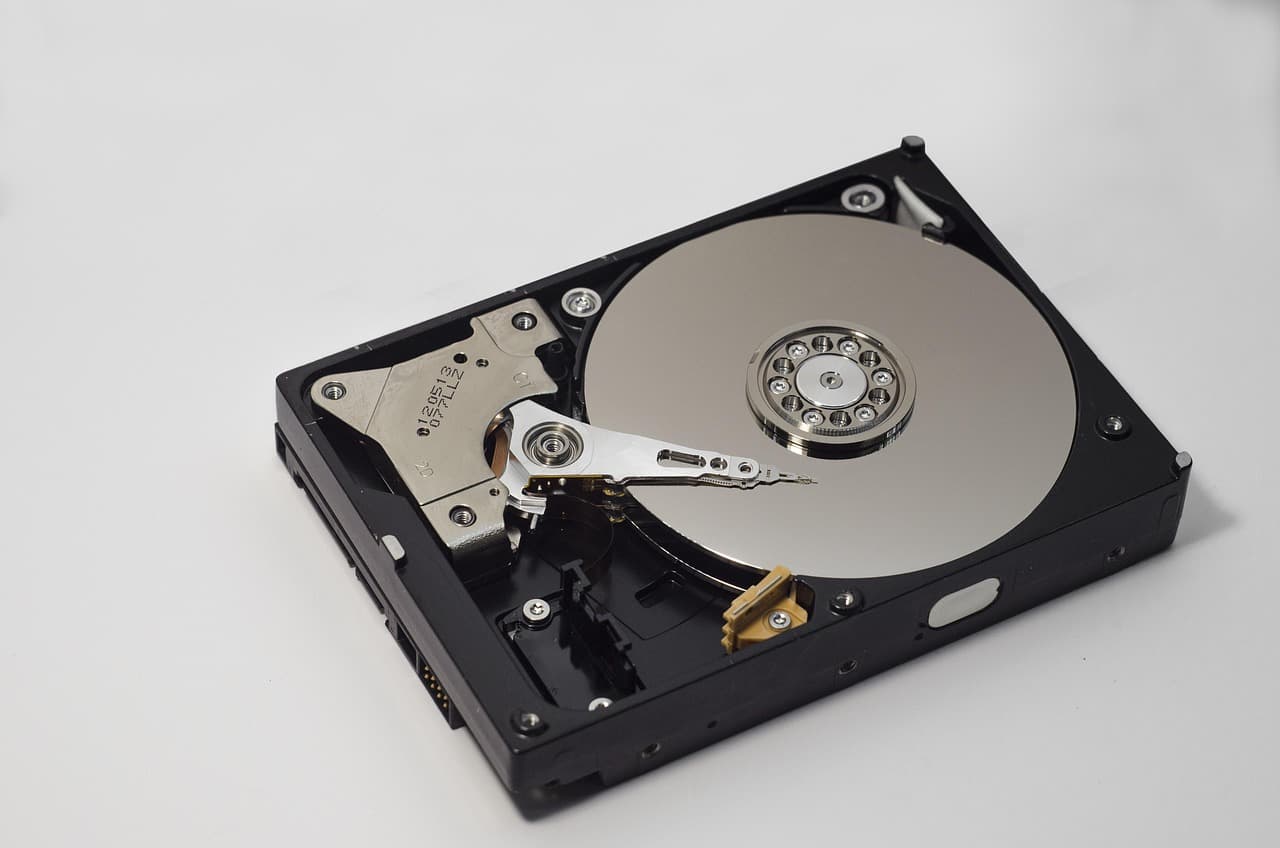
The read head is the mechanical component that reads and writes data on HDD platters, flying a few nanometers above the surface. It is the most fragile part of the drive: a shock, dust particle, or aging can cause a "head crash" (head-to-platter contact). The characteristic symptom is repetitive clicking (click of death). Any intervention requires a clean room.
Platter
The platter is the magnetic disk on which data is physically stored in a HDD. A typical hard drive contains 1 to 3 platters spinning at 5,400 or 7,200 RPM. Scratches on a platter (following a head crash) permanently destroy data in the damaged zones. Data on intact zones remains recoverable in a clean room.
HDD Firmware
Firmware is the software embedded in the drive controller that manages communication with the OS, bad sector mapping, and cache management. Firmware corruption (common on certain Seagate and Western Digital models) can make the drive completely invisible to the OS while the data is physically intact - but recovery requires specialized tools (PC-3000) and advanced expertise.
S.M.A.R.T.
S.M.A.R.T. (Self-Monitoring, Analysis and Reporting Technology) is a built-in monitoring system in drives and SSDs reporting real-time health indicators. Critical attributes include: Reallocated Sectors Count (rising count = dying drive), Uncorrectable Sector Count (unrecoverable errors), Spin Retry Count (startup difficulties). CrystalDiskInfo (Windows) and smartmontools (Linux/Mac) read this data for free.
SSD and Flash Recovery
SSD TRIM
TRIM is a command sent by the OS to the SSD controller to physically erase freed blocks in the background - without waiting for new data to be written. Result: deleted data is erased at firmware level within minutes to hours, not just marked as available. On SSDs with active TRIM (virtually all modern SSDs under Windows 10/11 and macOS), recovery rates drop below 20% after 4 hours. See the full analysis in our SSD and TRIM recovery article.
Deduplication
Deduplication is a storage technique that keeps only one copy of identical data and references duplicates. Used on NAS and enterprise systems, it complicates recovery because physical blocks no longer map one-to-one to logical files. Standard recovery tools may miss files on deduplicated volumes.
SSD Controller
The controller is the embedded processor in an SSD that manages data mapping, cell wear leveling, garbage collection, and communication with the OS. A controller failure makes the SSD invisible to the OS while the NAND cells containing data are intact - but recovery requires desoldering the chips and direct reading, a costly operation (€600-3,000).
Recovery Tools
ddrescue
ddrescue is an open source command-line tool (Linux/Mac) for creating disk images from failing drives. Its key feature: it prioritizes readable zones and makes multiple passes over error sectors using a progressive algorithm. Ideal for drives with bad sectors that worsen over time - ddrescue maximizes the amount of data saved before the drive dies completely. Basic command: ddrescue /dev/sdb image.img image.log.
PhotoRec
PhotoRec is a free open source tool (bundled with TestDisk) that scans a drive in raw mode (file carving) and reconstructs files from their binary signatures, independently of the file system structure. It supports over 480 formats (JPG, CR3, MOV, DOCX, PDF…). It does not restore original file names, but its recovery rate on SD cards and formatted drives is remarkable. See our TestDisk vs PhotoRec comparison.
Undelete
Undelete is the operation of restoring a deleted file whose metadata (index table entry) and data are still present on the drive. On HDD, it is often possible if the deletion is recent and the drive hasn't been heavily used since. On SSD with TRIM, undelete is generally impossible after a few minutes. Software like EaseUS, Recuva, and Disk Drill automate this process with a GUI. See our best recovery software 2026 comparison to choose the right tool.
Clean Room
A clean room is an atmosphere-controlled room (ISO 5, fewer than 3,520 particles per m³) used to open failing hard drives without dust landing on the platters. A single dust particle caught under a read head causes additional damage. A clean room is essential for mechanical failures (broken head, scratched platter, seized motor). Recovery services like Ontrack or DriveSavers use them as standard practice.
Advanced Configurations
RAID 0 / 1 / 5
RAID (Redundant Array of Independent Disks) groups multiple drives into one logical unit. RAID 0: striping with no redundancy (maximum performance, but if one drive fails, everything is lost). RAID 1: mirroring (identical copy on 2 drives, tolerates 1 failure). RAID 5: striping with distributed parity (tolerates 1 disk failure in a 3+ set). Recovery on degraded RAID requires specialized tools - see our RAID recovery software guide 2026.
Bad Blocks
Bad blocks are unrecoverable storage units on an SSD or USB flash drive. Unlike HDD bad sectors, they result from NAND cell wear (each cell supports a limited number of write cycles). SSD controllers maintain an internal bad block list to replace them with spare cells (spare area). When the spare area is exhausted, the drive becomes read-only and then fails completely.
RAW Disk
A RAW disk is a drive whose file system is not recognized by the OS: Windows displays "Do you want to format the disk?" or "The volume does not contain a recognized file system." This does not imply physical loss - most often a partial file system corruption is the cause. Never format a RAW disk before attempting recovery: recovery software scans the raw drive and retrieves files without reformatting.
This glossary covers the terms you will encounter in 95% of data loss diagnostics. For deeper dives on specific cases - SSD with TRIM, clicking hard drive, degraded RAID, formatted SD card - the site's thematic articles cover each scenario with step-by-step procedures.
Try EaseUS Data Recovery Wizard
Recover your deleted files → EaseUS
Free scan · deleted, formatted & lost files · Windows & Mac