You clicked Format a little too fast, or Windows offered to format an "unreadable" external drive and you accepted. First good news: in most cases, your files are still physically present on the disk. Second: there are proven methods to bring them back, with success rates that come down to three variables - the type of format, the type of media, and how much time has passed.
This guide breaks down what really happens at the bit level for each filesystem (NTFS, exFAT, APFS, FAT32) and lays out the procedures tested in 2026 on HDD, SSD, USB sticks and SD cards.
What a format actually does to your data
When you format a drive, the OS does not "empty" the sectors by default. It rewrites the file structure - the index that says where each file lives - and marks all the space as free. The data itself stays in place until new writes come along.
Quick format
On Windows 10 and 11, the "Quick Format" box is ticked by default in the format dialog. The operation takes 3 to 30 seconds depending on disk size. Here is what actually happens:
- The allocation table (MFT for NTFS, FAT for exFAT/FAT32) is reset.
- A new boot sector is written at the start of the partition.
- The remaining 99.9% of the disk is left untouched.
Result: a 1 TB drive quick-formatted still holds about 999 GB of bit-level recoverable data. As long as you do not write to it, software like EaseUS Data Recovery or PhotoRec can reconstruct the majority of files.
Full format
Unchecking the "Quick Format" box triggers a full format. Since Windows Vista (2007), this operation writes zeros across the entire disk surface on top of rebuilding the allocation table. On a 2 TB HDD running at 150 MB/s, expect roughly 3 hours 45 minutes. On an 8 TB drive, up to 14 hours.
After a full format, HDD recovery rates collapse to around 20 to 30%. The only recoverable files are those whose fragments escape the zero pass - typically because the full format does not systematically overwrite sectors marked as bad. On SSDs it is even worse (see below).
Recover a formatted drive with EaseUS
Quick scan + deep scan - up to 2 GB free recovery
NTFS, exFAT, APFS, FAT32: different behaviors
The filesystem determines what can be recovered after a format. Each one handles metadata differently.
NTFS (Windows, internal drives)
NTFS, introduced with Windows NT 3.1 in 1993 and still dominant in 2026, stores its index in the Master File Table (MFT). Each file occupies a record of about 1,024 bytes. During a quick format, the MFT is rewritten, but old MFT entries remain partially present in unused sectors. That is why recovery software can return not just files but also their original names.
According to Microsoft Learn, NTFS supports volumes up to 256 TB and keeps a journal ($LogFile) that can help reconstruct the last events before the format.
exFAT (USB sticks, SD cards, external drives)
Introduced in 2006, exFAT replaced FAT32 on media larger than 32 GB. Its FAT table is simpler: a single array of pointers. After a quick format of an exFAT USB stick, the FAT is wiped but the data zones stay intact. Recovery software then rebuilds files by signature (file carving) rather than by metadata. Downside: original filenames and the folder tree are usually lost.
APFS (Mac, since macOS High Sierra 10.13)
APFS, launched by Apple in March 2017, complicates recovery. The filesystem creates automatic snapshots through Time Machine (since macOS 11 Big Sur), and also "clones" that share blocks between files. According to Apple Support, an APFS format through Disk Utility with the "Erase" option takes about 15 seconds to reset the container, but data blocks are not overwritten. On a Mac with a T2 chip or Apple Silicon (M1, M2, M3, M4), the encrypted controller makes offline recovery much harder. For the full Mac-specific procedure, see our guide to recover deleted files on Mac.
FAT32 (older SD cards, USB sticks under 32 GB)
FAT32, dating back to 1996, is still used for maximum compatibility. Its simple structure - two copies of the FAT, a root directory - makes recovery easier. After a quick format, success rates exceed 90% with PhotoRec or EaseUS for 4 to 32 GB SD cards, provided no new photos or videos were added since.
HDD vs SSD: the big post-format divide
This is the most underestimated variable. The type of media radically changes your odds.
HDD (mechanical hard drive)
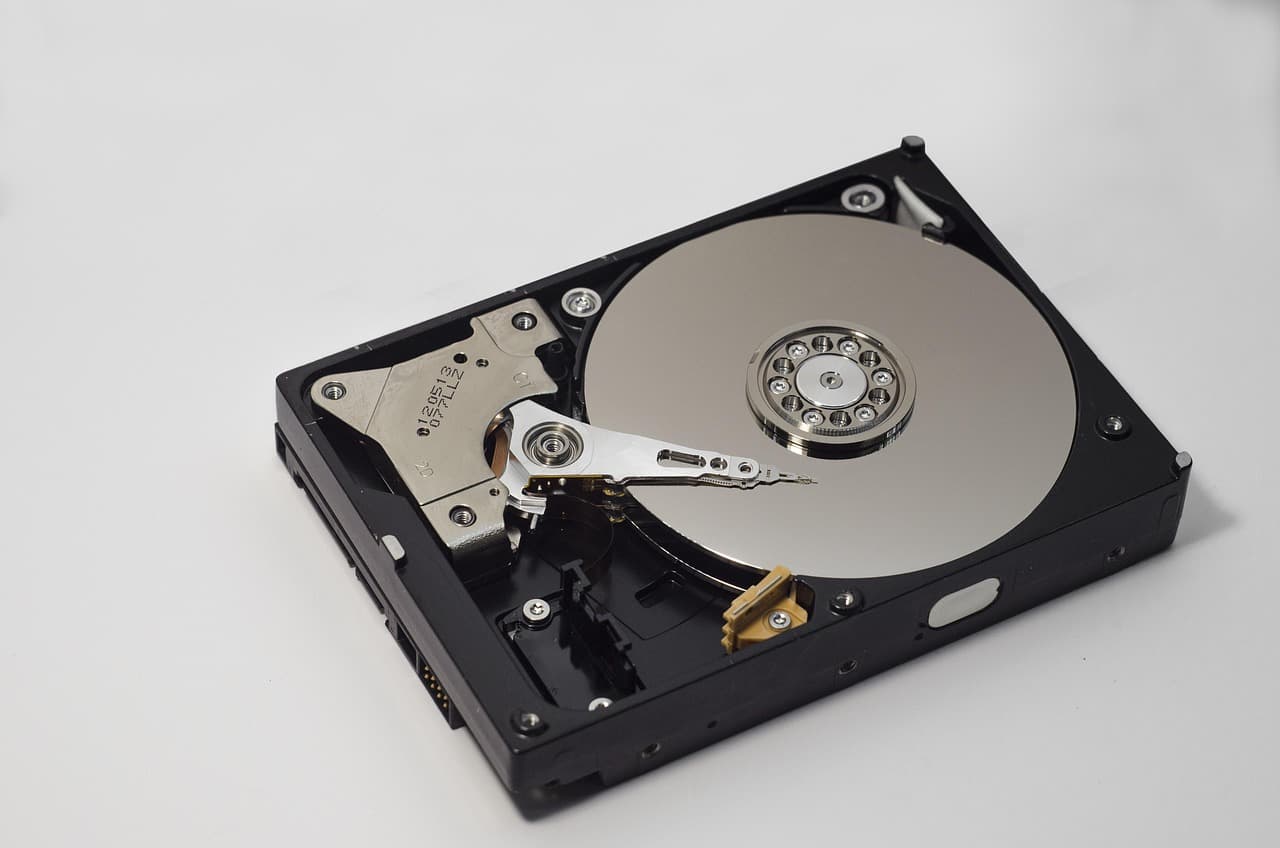
On an HDD, bits are stored magnetically on platters. A rewritten sector loses its old polarity, but an untouched sector keeps the data for years, sometimes decades. According to the BackBlaze 2024 drive reliability report, the magnetic retention of modern HDDs exceeds 10 years in normal storage conditions.
Realistic HDD recovery rates:
- Quick format, immediate action: 85 to 95%.
- Quick format, several days of use: 40 to 70%.
- Full format: 15 to 30%.
- Full format plus heavy writes: less than 5%.
SSD (NAND flash) and the TRIM trap
On an SSD, it is a different story. SSDs use NAND cells that must be erased in blocks before being rewritten. To stay ahead, the SSD controller relies on the TRIM command: as soon as a file is marked deleted or a disk is formatted, the OS tells the SSD to physically erase the affected pages.
TRIM has been enabled by default since:
- Windows 7 (October 2009).
- macOS 10.10.4 (July 2015, generalized in 2016).
- Linux kernel 3.7 (December 2012).
Result: on an SSD formatted with TRIM active, NAND pages get zeroed out within seconds to a few minutes. Recovery rates then fall below 10%, often under 2% if TRIM has had time to run. The only counter-measure: unplug the SSD immediately after the format, without letting the system keep running.
For deeper SSD diagnostics, see our guide on recovering a corrupted external drive.
USB sticks and SD cards: removable media case
USB sticks and SD cards also use flash, so TRIM applies in theory. In practice, most USB sticks do not implement TRIM through their entry-level controllers. As a result, after a quick format of a 64 GB exFAT USB stick, recovery rates with EaseUS or PhotoRec routinely exceed 80%.
High-end SD cards (SanDisk Extreme Pro, Sony Tough) have been shipping since 2018 with controllers that run aggressive wear leveling and can reshuffle NAND pages even without an explicit TRIM. On those models, recovery rates sometimes drop to 50% after format.
Recovery software for a formatted drive: the main options

Several mature tools can scan a quick-formatted drive and rebuild what is still on it. They all do best on a quick format with a magnetic HDD and worst on a TRIM-enabled SSD, where the freed blocks are usually already erased. Here is how the most widely used options compare on features, platform and price.
EaseUS Data Recovery Wizard
A polished, beginner-friendly tool for Windows and Mac. It runs an unlimited free scan with preview, so you can see whether your formatted files are recoverable before paying; the free tier caps the amount you can restore. Pricing is subscription or one-off depending on the plan. See our EaseUS vs Recuva 2026 comparison for a direct face-off.
Disk Drill (CleverFiles)
A slick interface, especially polished on macOS, with a free preview scan. Its "Recovery Vault" feature is a preventive layer that makes future recovery easier if you enable it before any loss.
R-Studio
The most capable of these for complex cases: RAID arrays, lost partitions and layered formats. The trade-off is a technical interface and a steeper learning curve, so it suits advanced users more than first-timers.
TestDisk / PhotoRec (open source)
Free and cross-platform, but command-line only with no graphical interface. Per the official CGSecurity documentation, PhotoRec recognises more than 480 file signatures through carving - ideal when you have no budget, as long as you accept that carving usually loses the original filenames and folder structure.
Recuva (Piriform)
A long-standing free Windows tool, simplest of the group. The free version is unlimited; the Pro tier adds support and automatic updates. It is Windows-only and lighter on deep-scan power than the paid suites above.
For a broader benchmark, check our best data recovery software 2026 ranking.
Quick scan vs deep scan: which one to pick?
All serious tools offer both modes. Understanding the difference saves hours.
Quick scan (5 to 30 minutes)
The quick scan reads the residual allocation table and reconstructs the file index from MFT fragments (NTFS) or directory entries (FAT/exFAT). It is fast, but it only finds files whose index fragments survived the format.
For a 1 TB drive, expect 7 to 15 minutes depending on read speed (up to 250 MB/s for a 7200 rpm HDD, up to 550 MB/s for a SATA SSD).
Deep scan (signature scanning, 2 to 12 hours)
The deep scan ignores the allocation table and reads every sector. It looks for known file signatures: a JPEG starts with FF D8 FF E0, a PDF with %PDF-, a DOCX (ZIP) with PK\x03\x04, an MP4 with ftyp at offset 4.
On a 2 TB drive at 180 MB/s, deep scan runs about 3 hours 10 minutes. For a 1 TB SATA SSD at 500 MB/s, around 35 minutes. On an external USB 3.0 HDD at 80 MB/s, plan for 7 hours.
Deep scan recovers more files but without their original names. Results show up as RECOVERED001.jpg, RECOVERED002.pdf, and so on. You will need to rename them after previewing.
Step-by-step procedure: recovering after format
Here is the sequence to follow, regardless of OS.
Step 1: Halt all writes
If it is an external drive or USB stick, unplug it right away. Every second of connection can trigger involuntary writes - Windows Search indexing, antivirus scans, thumbnail generation.
If it is the system drive (C:), stop launching programs, stop browsing, close background apps. Ideally, boot from a Linux Live USB (Ubuntu, for example) to freeze the source drive.
Step 2: Prepare a destination drive
You need a second medium to store recovered files. Its capacity must be at least equal to the amount of data to recover. A USB 3.0 external drive or a secondary internal SSD fits the bill.
Step 3: Install the software elsewhere
Download EaseUS Data Recovery (or any other) to a different drive from the one to recover. Installing on the source drive risks overwriting target files for good.
Step 4: Run the quick scan
Select the formatted drive in the interface, launch the quick scan. Do not touch anything during analysis. For a 500 GB drive quick scan, plan around 8 minutes.
Step 5: Run a deep scan if needed
If the quick scan misses files, chain a deep scan. During the 2 to 8 hours of processing, leave the computer powered on and disable sleep mode.
Step 6: Preview
All good tools let you preview detected files before paying. Check photo thumbnails, the first lines of documents, MP3 playback. If preview is broken, the file is corrupted - no point paying to restore it.
Step 7: Restore and verify
Tick the files to recover, choose the destination drive (never the source), launch the restore. Then open a few random files to validate integrity.
Start the recovery now
EaseUS Data Recovery Wizard - deep scan, free preview up to 2 GB
Common mistakes that ruin recovery
A few traps to avoid after a format.
Keeping the drive in use
This is mistake number one. Every new byte written can destroy 4 KB of recoverable data (standard NTFS cluster size). On an SSD, the consequences are even heavier because of garbage collection.
Installing the software on the target drive
Installing EaseUS or another tool means 80 to 400 MB of writes on the source disk. That can be enough to overwrite your most important files.
Reformatting "to fix it"
If Windows offers another format because it cannot read the disk, decline. Each extra format cuts recovery odds by another 30 to 60%.
Restoring to the source drive
Same trap as installation: copying recovered files back to the disk you are scanning in parallel can wipe what you are trying to save.
Trusting the filenames blindly
A file named vacation_2024.jpg after a deep scan is not necessarily intact. The signature is enough to identify the type, but internal bytes may be corrupted. Always preview before considering a file safe.
When to call a professional
Cleanroom labs remain indispensable in three cases:
- Drive that no longer boots at all after format (mechanical HDD failure, fried SSD controller).
- Critical data with no backup: unique photos, legal documents, business accounting.
- Complex RAID with several drives formatted simultaneously.
Typical 2026 pricing in the US and UK:
- Diagnostic: 50 to 150 USD (often free if you accept the recovery quote).
- Simple logical case (formatted healthy HDD): 300 to 800 USD.
- Mechanical case (dead heads, scratched platter): 800 to 1,800 USD.
- Full cleanroom (SSD, burned NAND, RAID): 1,500 to 2,500 USD.
- 48-hour rush: +50 to +100% surcharge.
Recognized labs include Ontrack (30+ countries), DriveSavers (USA), Secure Data Recovery (USA). Always ask for a no-commitment quote and a confidentiality NDA for sensitive data.
Prevention: avoiding a repeat
The best recovery is the one you never have to run. A few simple rules:
- 3-2-1 rule: 3 copies of every important file, on 2 different media, with 1 off-site (cloud or drive at a relative's place).
- Automated backup: set up File History (Windows) or Time Machine (Mac) on a dedicated external drive.
- Secondary cloud: OneDrive, Google Drive, iCloud, Backblaze (60 USD/year for unlimited storage) for the off-site copy.
- ZFS or Btrfs snapshots if you are on Linux, a Synology or QNAP NAS.
- Label your drives physically and name volumes clearly so you never format the wrong one.
Before any voluntary format, double-check the drive letter or mount point. On Linux, never run mkfs without verifying lsblk output first.
Bottom line
Recovering files after a format is possible in most cases - provided you act fast and pick the right tool. Key takeaways:
- A quick format leaves over 99% of the data intact at bit level.
- A full format rewrites the entire disk and drops success rates under 30%.
- SSDs with TRIM are almost unrecoverable after format, unlike HDDs.
- The right software pulls back 80 to 95% of files on an HDD if you stop writing immediately.
- Deep scan finds more than quick scan, but without original filenames.
To go further, read our full guide on how to recover deleted files on Windows, or in case of a deeper failure, our guide on recovering a corrupted external drive.
Related guides
- Mac data recovery (Apple Silicon M3/M4)
- Recover files on Linux (ext4, Btrfs, XFS, ZFS)
- Recover deleted Gmail emails
- Recover deleted Outlook emails
Recover your deleted files → EaseUS
Free scan · deleted, formatted & lost files · Windows & Mac